Sometimes when you open Windows Task Manager, the data on the Processes or Performance tab appears frozen. CPU, memory, disk, or network values may stay unchanged for a long time. At first glance this can look like a system problem, but in reality running programs, network traffic, and resource usage are still changing normally.
In most cases, the system is not actually stuck. The more likely reason is that Task Manager’s refresh speed has been changed to Paused.
Quick Answer
Open Task Manager and change its update speed from Paused to Normal. On newer Windows 11 versions, open Settings in Task Manager and find Real time update speed. On older layouts, use View > Update speed. If the values still do not move, close and reopen Task Manager before investigating system-wide performance problems.
Symptoms
Common signs include:
- CPU, memory, and other values on the
Processestab stop changing - Graphs on the
Performancetab no longer update - Programs are clearly still running, but Task Manager looks frozen
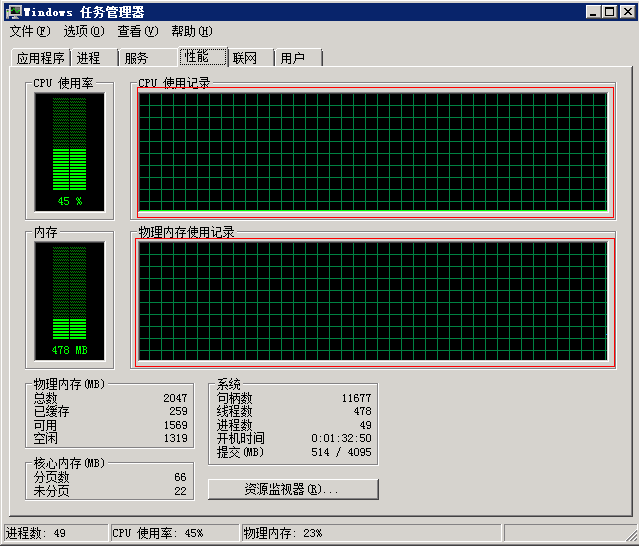
Here is an example of what the issue looks like:
Cause
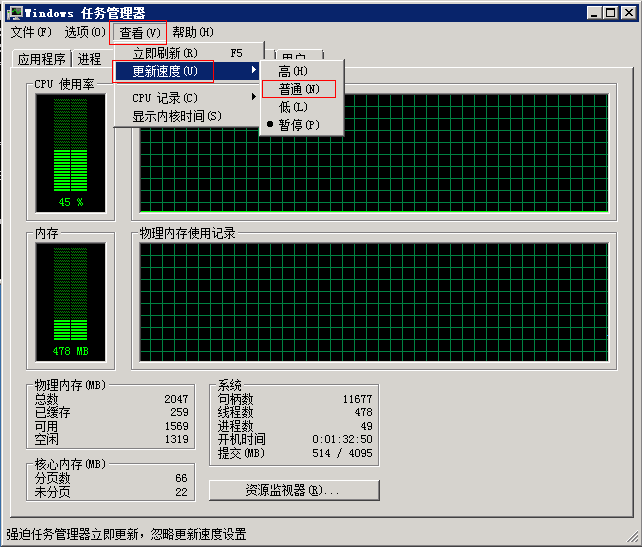
Task Manager lets you adjust the Update speed, with options such as High, Normal, Low, or Paused.
If this setting is changed to Paused, the statistics shown in the interface stop refreshing. That is why CPU, memory, or network information can appear to be completely frozen.
As shown below, this option is usually available from the View menu in Task Manager:
Fix on Windows 11 and Older Task Manager Layouts
The setting appears in different places depending on the Task Manager version:
- Newer Windows 11 layout: open Task Manager, select Settings at the lower left, and set Real time update speed to
Normal. - Older layout: open View > Update speed and select
NormalorHigh.
For the older layout shown in the screenshots, use these steps:
- Open Task Manager
- Click the
Viewmenu - Find
Update speed - Check whether it is currently set to
Paused - Change it back to
NormalorHigh
After that, watch the Processes or Performance tab again. In most cases, the data will start updating normally right away.
Changing this setting only affects how often Task Manager redraws its statistics. It does not pause running applications, CPU activity, network traffic, or Windows itself.
Additional notes
If the data still does not refresh after switching back to Normal, check a few other possibilities:
- Whether you are using system-tuning tools or third-party performance monitoring software
- Whether you are connected through a remote session and the interface is not refreshing correctly
- Whether Task Manager itself is stuck, in which case you can close it and open it again
- Whether only one graph is frozen while other values update, which may point to a driver or performance-counter problem instead of the refresh setting
That said, in most cases this issue is simply caused by Update speed being accidentally set to Paused, so checking that first is usually the fastest fix.