When hard drive prices rise sharply, a full NAS does not always need an immediate drive upgrade. If the main NAS is still working normally and only running out of capacity, it is often better to separate data by access frequency: keep frequently used hot data on the original NAS, and move rarely used cold data and backups to a separate cold-storage disk.
This article records a low-cost approach: use large HC620 drives for cold data, then use an inexpensive TerraMaster F2-220, F2-221, or F4 as the migration and mount node. It does not aim for high performance. It solves one practical problem: during a period when upgrading disks is not cost-effective, first free up space on the main NAS.
Idea
Sort data by access frequency first:
- Hot data: photos, work files, recent downloads, frequently watched videos. Keep these on the main NAS.
- Cold data: old media libraries, archived materials, large files that rarely change. Move these to HC620.
- Backup data: data that only needs periodic writes and occasional reads. This can also be stored on HC620.
For HC620 usage scenarios, see the site article: Misunderstandings and Correct Usage of Western Digital HC620 SMR Drives. It is better suited to sequential writes, long-term storage, and random reads. It is not suitable for workloads with frequent deletes and repeated writes.
If the goal is simply to free up space on the main NAS, I do not recommend replacing the main NAS disks on a large scale while hard drive prices are high. Move rarely used data out first, and let the main NAS continue handling hot data. This is usually more cost-effective.
Why Use an Old TerraMaster
The problem with HC620 is not capacity, but convenience. It has requirements for the operating system, interface, and usage pattern, so putting it directly into a USB hard drive enclosure is not a good fit.
An old TerraMaster F2-220, F2-221, or some F4 models can be used as a low-cost cold-data node. The advantages are straightforward:
- Cheap. A used F2-220 is often under 200 RMB.
- Small footprint and acceptable power consumption.
- The system can be installed on a USB drive, so it does not occupy a drive bay.
- Two or more SATA bays are available, making it suitable for HC620 archive disks.
These old machines are not powerful, but they are enough for cold-data migration, CIFS mounting, and background copying. Although the F2-220 only has older SATA 3G ports, HC620 can still reach around 200MB/s in outer-track disk-to-disk copies in testing. For cold-data migration, this is not slow. The bottleneck is often the network, the source disk condition, or the number of files.
If the onboard gigabit network is not fast enough, you can also add a USB 2.5G network adapter. A cold-data node does not need complicated modification. As long as the system recognizes the adapter, and both the switch and main NAS support 2.5G, the network bottleneck can be raised noticeably.
Prepare Video Output
If the machine has no HDMI port, you need VGA for system installation. The F2-220 has an internal VGA header. You can use a motherboard internal 12-pin VGA adapter cable: one end connects to the internal header, and the other end exposes a standard VGA connector for a monitor.
For VGA adapter specifications and notes, see: Installing fnOS on TerraMaster F2-220: VGA Output. In short, search terms include “12Pin VGA adapter cable”, “motherboard 12-pin VGA cable”, and “2.0mm 12Pin to VGA”. Before buying, check pitch, direction, and pinout.
Install Ubuntu Server to a USB Drive
Install Ubuntu Server to a USB drive so all hard drive bays remain available for data disks.
The F2-220 is relatively weak, so installing directly on it can be slow. A more efficient method is to plug the USB drive into a faster computer, complete the Ubuntu Server installation there, then move the USB drive back to the TerraMaster. As long as the boot mode is compatible, it usually works directly.
After installation, check the network configuration carefully. Otherwise, the machine may boot but have no network connection, making SSH management impossible.
Configure Networking
After entering the system, check the network interface name first:
|
|
The sample output shows the logical name:
|
|
Here the interface name is enp2s0. Then edit the netplan configuration:
|
|
If the file does not exist, create it with this content:
|
|
Replace enp2s0 with the actual interface name on your machine. Save the file and apply it:
|
|
After the network is restored, you can SSH into the TerraMaster and continue without keeping a monitor connected.
Format HC620 as btrfs
If the HC620 is new, or if all data on it has been confirmed unnecessary, format it as btrfs first. The following operations erase the target drive. Confirm the disk device before running them. Do not format the main NAS share or the system USB drive by mistake.
List current disks:
|
|
You can also check stable disk paths:
|
|
After confirming which device is the HC620, unmount any existing mount point:
|
|
If you want to create btrfs directly on the whole disk:
|
|
Parameter notes:
-f: force file-system creation, avoiding old signatures blocking the format.-O zoned: enable the zoned feature, suitable for drives like HC620 that need zone-aware sequential writes.-d single -m single: use single-disk mode for both data and metadata.-L HC620_01: set a label for easier identification.
If your system or kernel does not handle zoned btrfs well, continue with the earlier test notes: Is a New WD HC620 14T Drive for About 600 RMB Worth Buying?. Compatibility for this type of drive depends on kernel version, SATA controller, and file-system support. Do not import real data until the setup behaves normally.
After formatting, test with a temporary mount:
|
|
After confirming it mounts correctly, write /etc/fstab for automatic mounting. For long-term use, prefer /dev/disk/by-id/ instead of /dev/sda to avoid device-name changes after reboot.
Configure Mounts
This cold-data node usually needs to mount two types of paths:
- The main NAS share, used to read data that needs to be migrated.
- The local HC620 data disks, used to store cold data and backups.
Create mount directories first:
|
|
If you need to mount CIFS/SMB shares, install the tools:
|
|
Then edit /etc/fstab and add lines like these:
|
|
The first line mounts the main NAS share. The next two lines mount local disks.
In real use, prefer stable paths such as /dev/disk/by-id/ for data disks to avoid /dev/sda and /dev/sdb changing order after reboot. HC620 formatting and mounting notes are also covered in the earlier record: Is a New WD HC620 14T Drive for About 600 RMB Worth Buying?.
Test the mount after editing:
|
|
After confirming that both the main NAS share and local data disks appear, start migrating data.
Copy Files in the Background
For large data migrations, do not run plain cp directly in the SSH foreground. The preferred setup here is screen + mc: screen keeps the session alive after SSH disconnects, while mc provides a clearer two-pane file-management interface.
mc is well suited to manually organizing cold data. Open the main NAS mount on the left, open the HC620 data disk on the right, select files, and press F5 to copy. During copying, it shows both current-file progress and total progress, which is much easier to read than raw command-line output when moving many files.
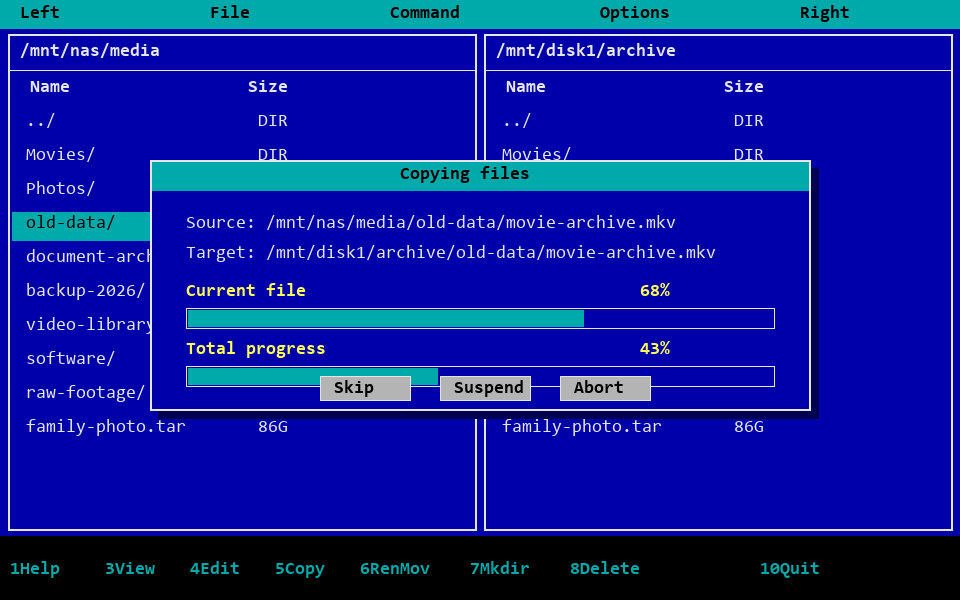
The image above illustrates the copy-progress window. The Midnight Commander manual also notes that copy, move, and delete operations show a file-operation dialog in verbose mode, with current-file and total progress available.
Install the tools:
|
|
Start a background session:
|
|
Run mc inside screen:
|
|
The usual workflow is to open the source directory and target directory in the two panels, then operate with shortcuts:
Tab: switch between panels.Insert: select multiple files or directories.F5: copy to the other panel.F6: move or rename.F8: delete, use carefully.
If you need a more scriptable and repeatable sync task, use rsync instead:
|
|
Even if SSH disconnects during copying, the screen session remains alive. Reconnect and run:
|
|
You will return to the original copy task.
Usage Advice
This setup is for cold data and backups. Do not use HC620 as a high-frequency write disk. Suggested usage:
- Keep hot data and daily services on the main NAS.
- Store large long-term files, media libraries, and archive materials on HC620.
- Migrate mainly by sequential writes; avoid frequent deletes and repeated small-file writes.
- Keep at least two copies of important data. Do not keep the only copy on a single disk.
- After migration, sample-check files and confirm that directory and file counts look normal.
If hard drive prices fall later, upgrading the main NAS array can still be considered. For now, using a low-cost node to relieve capacity pressure keeps both risk and spending more controllable.
Summary
When NAS space is full, buying new drives immediately is not the only answer. Treat the main NAS as the hot-data device, treat HC620 as cold-data and backup storage, and use a cheap TerraMaster F2-220, F2-221, or F4 as the mount and copy node. This is a low-cost and practical transitional setup.
The key is not performance, but division of responsibility: the main NAS keeps the daily experience smooth, while cold data is stored separately. This frees up space and avoids a large upgrade cost during a period of high hard drive prices.